YouTube Video
Video not loading? Click here.

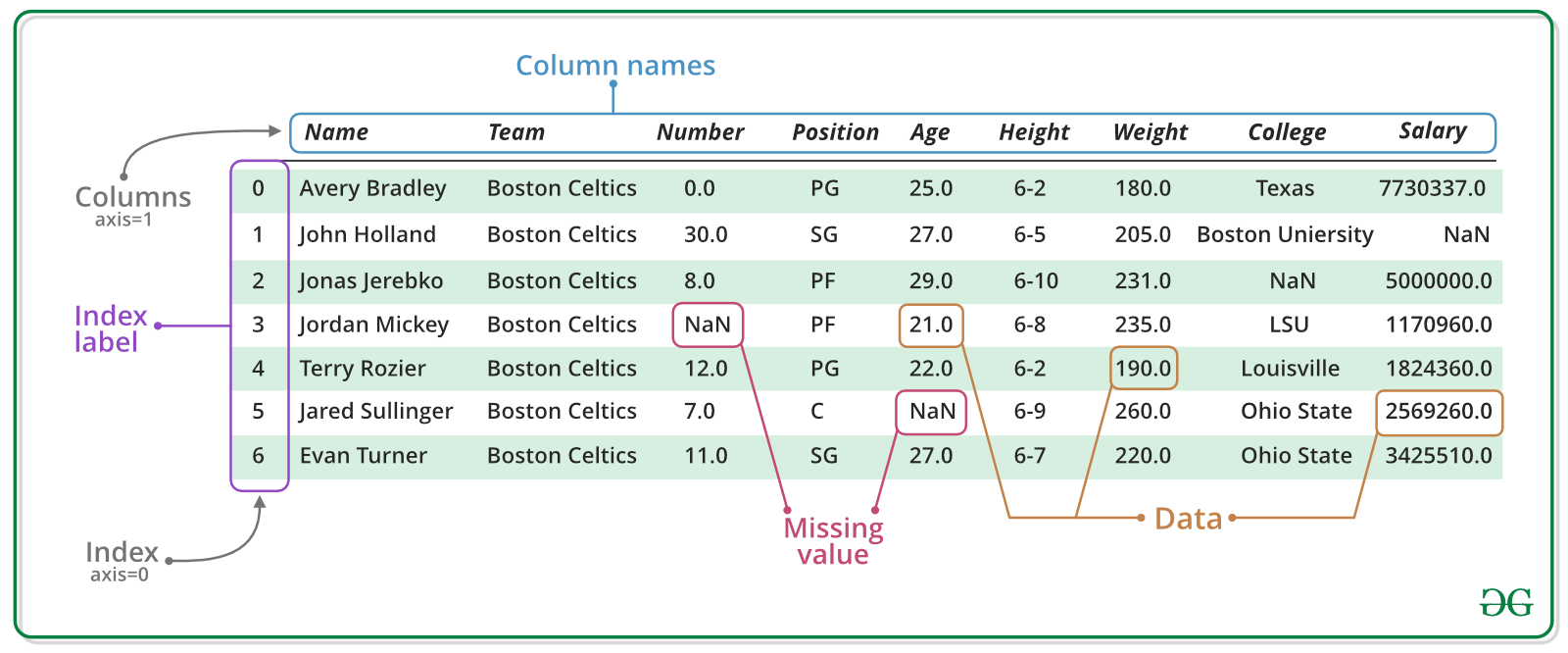
Pandas is a an open source library providing Excel-like tables in Python. It offers functionality for efficiently reading, writing, and processing data such as sorting, filtering, aggregating, and visualizing. Moreover, it provides tools for handling missing data and time series data.
import pandas as pd
import numpy as np
The Series
A Series represents a one-dimensional array of data. The main difference between a Series and numpy array is that a Series has an index. The index contains the labels that we use to access the data. It is actually quite similar to a Python dictionary, where each value is associated with a key.
There are many ways to create a Series, but the core constructor is pd.Series() which can process a dictionary to create a Series.
dictionary = {
    "Neckarwestheim": 1269,
    "Isar 2": 1365,
    "Emsland": 1290,
}
s = pd.Series(dictionary)
s
Neckarwestheim 1269
Isar 2 1365
Emsland 1290
dtype: int64dictionary{'Neckarwestheim': 1269, 'Isar 2': 1365, 'Emsland': 1290}Arithmetic operations and most numpy functions can be applied to pd.Series.
An important point is that the Series keep their index during such operations.
np.log(s) / s**0.5Neckarwestheim 0.200600
Isar 2 0.195391
Emsland 0.199418
dtype: float64We can access the underlying index object if we need to:
s.indexIndex(['Neckarwestheim', 'Isar 2', 'Emsland'], dtype='object')We can get values back out using the index via the .loc attribute
s.loc["Isar 2"]np.int64(1365)Or by raw position using .iloc
s.iloc[2]np.int64(1290)We can pass a list or array to loc to get multiple rows back:
s.loc[["Neckarwestheim", "Emsland"]]Neckarwestheim 1269
Emsland 1290
dtype: int64And we can even use so-called slicing notation (:) to get ranges of rows:
s.loc["Neckarwestheim":"Emsland"]Neckarwestheim 1269
Isar 2 1365
Emsland 1290
dtype: int64s.iloc[:2]Neckarwestheim 1269
Isar 2 1365
dtype: int64If we need to, we can always get the raw data back out as well
type(s.values) # a numpy arraynumpy.ndarrayThe DataFrame
There is a lot more to a pandas.Series, but they are limit to a single column. A more broadly useful Pandas data structure is the DataFrame. pandas.DataFrame is a collection of series that share the same index. It’s a lot like a table in a spreadsheet.
The core constructor is pd.DataFrame(), which can be used like this using a dictionary of lists:
data = {
    "capacity": [1269, 1365, 1290],  # MW
    "type": ["PWR", "PWR", "PWR"],
    "start_year": [1989, 1988, 1988],
    "end_year": [np.nan, np.nan, np.nan],
}
df = pd.DataFrame(data, index=["Neckarwestheim", "Isar 2", "Emsland"])
dfWe can also switch columns and rows very easily using the .T (transpose) attribute:
dfA wide range of statistical functions are available on both Series and DataFrames.
df.min()capacity 1269
type PWR
start_year 1988
end_year NaN
dtype: objectdf.mean(numeric_only=True)capacity 1308.000000
start_year 1988.333333
end_year NaN
dtype: float64df.describe()We can get a single column as a Series using python’s getitem syntax on the DataFrame object.
df["capacity"]Neckarwestheim 1269
Isar 2 1365
Emsland 1290
Name: capacity, dtype: int64...or using attribute syntax.
df.end_yearNeckarwestheim NaN
Isar 2 NaN
Emsland NaN
Name: end_year, dtype: float64Indexing works very similar to series
df.loc["Emsland"]capacity 1290
type PWR
start_year 1988
end_year NaN
Name: Emsland, dtype: objectdf.iloc[2]capacity 1290
type PWR
start_year 1988
end_year NaN
Name: Emsland, dtype: objectBut we can also specify the column(s) and row(s) we want to access
df.loc["Emsland", "start_year"]np.int64(1988)df.loc[["Emsland", "Neckarwestheim"], ["start_year", "end_year"]]Mathematical operations work as well, either on the whole DataFrame or on specific columns, the result of which can be assigned to a new column:
df.capacity * 0.8Neckarwestheim 1015.2
Isar 2 1092.0
Emsland 1032.0
Name: capacity, dtype: float64df["reduced_capacity"] = df.capacity * 0.8
dfCleaning Data
We can also remove columns or rows from a DataFrame:
df.drop("reduced_capacity", axis="columns")
dfWe can update the variable df by either overwriting df or passing an inplace keyword:
df = df.drop("reduced_capacity", axis="columns")dfWe can also drop columns with only NaN values
df.dropna(axis=1, how="any")Or fill it up with default fallback data:
df.fillna(2023)
dfSay, we already have one value for end_year and want to fill up the missing data. We can use forward fill (ffill) or backward fill (bfill):
df.loc["Emsland", "end_year"] = 2023
df.loc["Neckarwestheim", "end_year"] = 2026
dfdf["end_year"] = df["end_year"].ffill()
df
df["x"] = np.nan
df["y"] = np.nan
dfSometimes it can be useful to rename columns:
df.rename(columns=dict(x="lat", y="lon"))Sometimes it can be useful to replace values:
df.replace({"PWR": "Pressurized water reactor"})dfIn many cases, we want to modify values in a dataframe based on some rule. To modify values, we need to use .loc or .iloc. It can be use to set a specific value or a set of values based on their index and column labels:
df.loc["Isar 2", "start_year"] = 2000
df.loc["Emsland", "capacity"] += 10
dfIt can even be a completely new column:
operational = ["Neckarwestheim", "Isar 2", "Emsland"]
df.loc[operational, "y"] = [49.04, 48.61, 52.47]
dfCombining Datasets
Pandas supports a wide range of methods for merging different datasets. These are described extensively in the documentation. Here we just give a few examples.
data = {
    "capacity": [1288, 1360, 1326],  # MW
    "type": ["BWR", "PWR", "PWR"],
    "start_year": [1985, 1985, 1986],
    "end_year": [2021, 2021, 2021],
    "x": [10.40, 9.41, 9.35],
    "y": [48.51, 52.03, 53.85],
}
df2 = pd.DataFrame(data, index=["Gundremmingen", "Grohnde", "Brokdorf"])
df2We can now add this additional data to the df object
df = pd.concat([df, df2])
dfSorting & Filtering Data
We can also sort the entries in dataframes, e.g. alphabetically by index or numerically by column values
df.sort_index()df.sort_values(by="end_year", ascending=False)We can also filter a DataFrame using a boolean series obtained from a condition. This is very useful to build subsets of the DataFrame.
df.capacity > 1300Neckarwestheim False
Isar 2 True
Emsland False
Gundremmingen False
Grohnde True
Brokdorf True
Name: capacity, dtype: booldf[df.capacity > 1300]We can also combine multiple conditions, but we need to wrap the conditions with brackets!
df[(df.capacity > 1300) & (df.start_year >= 1988)]Or we make SQL-like queries:
df.query("start_year == 1988")threshold = 1300
df.query("start_year == 1988 and capacity > @threshold")dfApplying Functions
Sometimes it can be useful to apply a function to all values of a column/row. For instance, we might be interested in normalised capacities relative to the largest nuclear power plant:
def normalise(s):
    return s / df.capacity.max()


df.capacity.apply(normalise)
Neckarwestheim 0.929670
Isar 2 1.000000
Emsland 0.952381
Gundremmingen 0.943590
Grohnde 0.996337
Brokdorf 0.971429
Name: capacity, dtype: float64For simple functions, there’s often an easier alternative:
def normalise(s: float):
    # adsfjielfwa
    return s / df.capacity.max()


df.capacity.apply(normalise)
Neckarwestheim 0.929670
Isar 2 1.000000
Emsland 0.952381
Gundremmingen 0.943590
Grohnde 0.996337
Brokdorf 0.971429
Name: capacity, dtype: float64But the .apply() function often gives you more flexibility.
Plotting
DataFrames have all kinds of useful plotting built in.
df.plot(kind="scatter", x="start_year", y="capacity")<Axes: xlabel='start_year', ylabel='capacity'>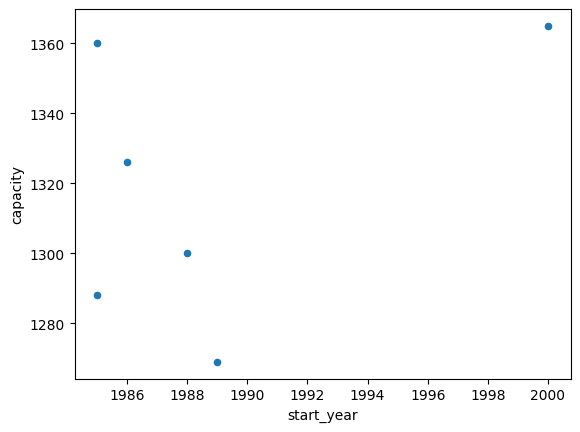
df.capacity.plot.barh(color="orange")
import matplotlib.pyplot as plt

plt.xlabel("Capacity (MW)")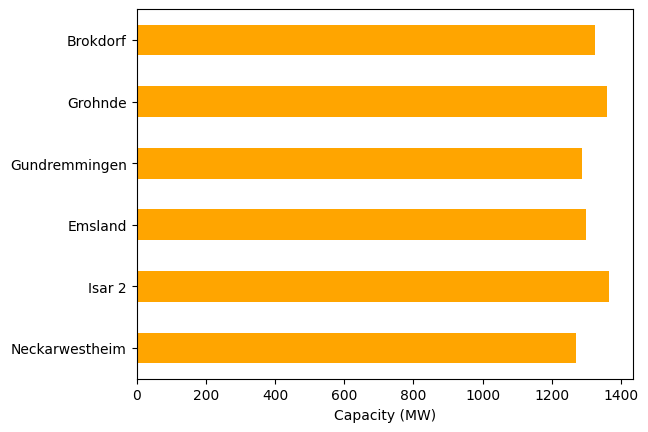
Time Indexes
Indexes are very powerful. They are a big part of why Pandas is so useful. There are different indices for different types of data. Time Indexes are especially great when handling time-dependent data.
time = pd.date_range(start="2021-01-01", end="2023-01-01", freq="D")
time.dayofyear
Index([ 1, 2, 3, 4, 5, 6, 7, 8, 9, 10,
...
357, 358, 359, 360, 361, 362, 363, 364, 365, 1],
dtype='int32', length=731)values = np.sin(2 * np.pi * time.dayofyear / 365)
valuesIndex([ 0.017213356155834685, 0.03442161162274574, 0.051619667223253764,
0.06880242680231986, 0.08596479873744647, 0.10310169744743485,
0.1202080448993527, 0.13727877211326478, 0.15430882066428117,
0.1712931441814776,
...
-0.13727877211326517, -0.12020804489935275, -0.10310169744743544,
-0.0859647987374467, -0.06880242680232064, -0.05161966722325418,
-0.034421611622745804, -0.01721335615583528, 6.432490598706546e-16,
0.017213356155834685],
dtype='float64', length=731)values = np.sin(2 * np.pi * time.dayofyear / 365)
ts = pd.Series(values, index=time)
ts2021-01-01 1.721336e-02
2021-01-02 3.442161e-02
2021-01-03 5.161967e-02
2021-01-04 6.880243e-02
2021-01-05 8.596480e-02
...
2022-12-28 -5.161967e-02
2022-12-29 -3.442161e-02
2022-12-30 -1.721336e-02
2022-12-31 6.432491e-16
2023-01-01 1.721336e-02
Freq: D, Length: 731, dtype: float64ts.plot()<Axes: >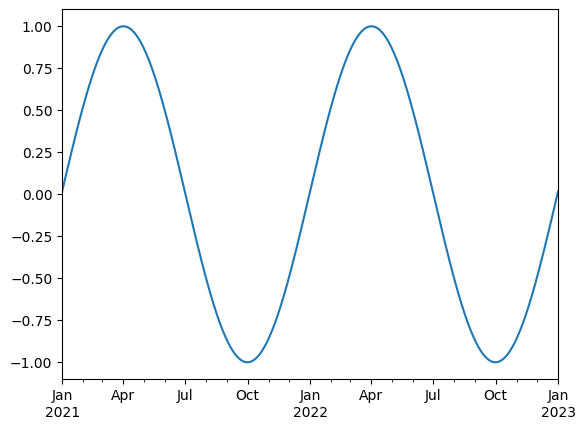
We can use Python’s slicing notation inside .loc to select a date range.
ts.loc["2021-01-01":"2021-07-01"].plot()<Axes: >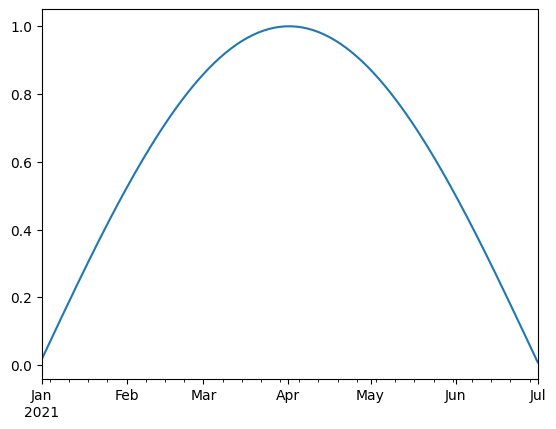
ts.loc["2021-05"].plot()<Axes: >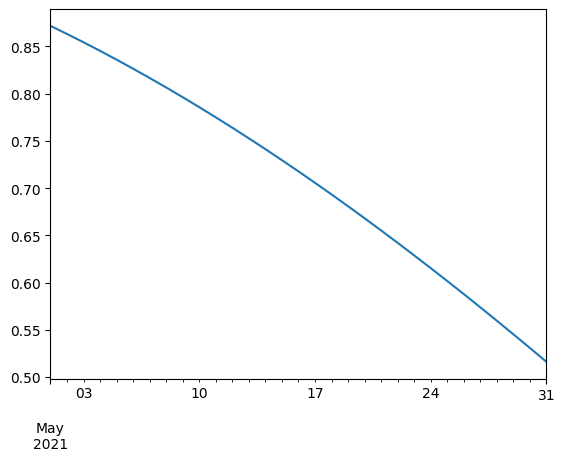
The pd.TimeIndex object has lots of useful attributes
ts.index.monthIndex([ 1, 1, 1, 1, 1, 1, 1, 1, 1, 1,
...
12, 12, 12, 12, 12, 12, 12, 12, 12, 1],
dtype='int32', length=731)ts.index.weekdayIndex([4, 5, 6, 0, 1, 2, 3, 4, 5, 6,
...
4, 5, 6, 0, 1, 2, 3, 4, 5, 6],
dtype='int32', length=731)Another common operation is to change the resolution of a dataset by resampling in time. Pandas exposes this through the .resample() function. The resample periods are specified using pandas offset index syntax.
Below, we resample the dataset by taking the mean over each month.
ts.resample("12h").mean().interpolate()2021-01-01 00:00:00 1.721336e-02
2021-01-01 12:00:00 2.581748e-02
2021-01-02 00:00:00 3.442161e-02
2021-01-02 12:00:00 4.302064e-02
2021-01-03 00:00:00 5.161967e-02
...
2022-12-30 00:00:00 -1.721336e-02
2022-12-30 12:00:00 -8.606678e-03
2022-12-31 00:00:00 6.432491e-16
2022-12-31 12:00:00 8.606678e-03
2023-01-01 00:00:00 1.721336e-02
Freq: 12h, Length: 1461, dtype: float64ts.resample("ME").mean().plot()<Axes: >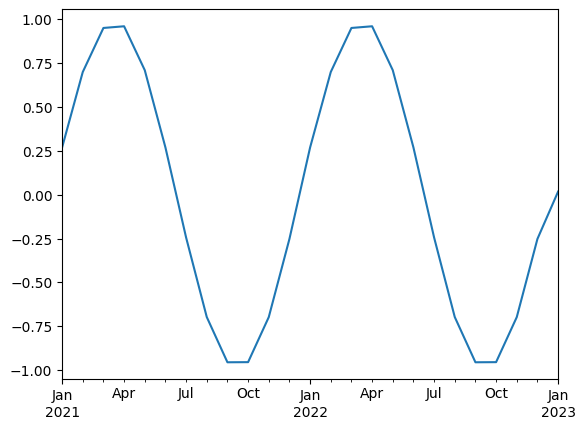
Reading and Writing Files
To read data into pandas, we can use for instance the pd.read_csv() function. This function is quite powerful and complex with many different settings. You can use it to extract data from almost any text file.
The pd.read_csv() function can take a path to a local file as an input, or even a hyperlink to an online text file.
Let’s import a slightly larger dataset about the power plant fleet in Europe_
fn = "https://raw.githubusercontent.com/PyPSA/powerplantmatching/master/powerplants.csv"
# fn = "powerplants(4).csv"
df = pd.read_csv(fn, index_col=0)df = pd.read_csv(fn, index_col=0)
df.iloc[:5, :10]df.info()<class 'pandas.core.frame.DataFrame'>
Index: 165064 entries, 0 to 165578
Data columns (total 18 columns):
# Column Non-Null Count Dtype
--- ------ -------------- -----
0 Name 165064 non-null object
1 Fueltype 165064 non-null object
2 Technology 112729 non-null object
3 Set 164686 non-null object
4 Country 165064 non-null object
5 Capacity 165030 non-null float64
6 Efficiency 510 non-null float64
7 DateIn 160380 non-null float64
8 DateRetrofit 2553 non-null float64
9 DateOut 4720 non-null float64
10 lat 165064 non-null float64
11 lon 165064 non-null float64
12 Duration 1854 non-null float64
13 Volume_Mm3 1762 non-null float64
14 DamHeight_m 2010 non-null float64
15 StorageCapacity_MWh 2403 non-null float64
16 EIC 165064 non-null object
17 projectID 165064 non-null object
dtypes: float64(11), object(7)
memory usage: 23.9+ MB
df.describe()Sometimes, we also want to store a DataFrame for later use. There are many different file formats tabular data can be stored in, including HTML, JSON, Excel, Parquet, Feather, etc. Here, let’s say we want to store the DataFrame as CSV (comma-separated values) file under the name “tmp.csv”.
df.to_csv("tmp.csv")dfGrouping and Aggregation
Both Series and DataFrame objects have a groupby method, which allows you to group and aggregate the data based on the values of one or more columns.
It accepts a variety of arguments, but the simplest way to think about it is that you pass another series, whose unique values are used to split the original object into different groups.
Here’s an example which retrieves the total generation capacity per country.
grouped = df.groupby("Country").Capacity.sum()
grouped.sort_values(ascending=False).head(10)
Country
Germany 327104.098047
United Kingdom 164205.240000
France 155668.972001
Spain 147409.114800
Italy 105597.438000
Poland 67791.266738
Ukraine 57647.700000
Sweden 53198.022323
Netherlands 45319.900000
Norway 40555.110000
Name: Capacity, dtype: float64Such chaining of multiple operations is very common with pandas.
Let’s break apart this operation a bit. The workflow with groupby can be divided into three general steps:
Split: Partition the data into different groups based on some criterion.
Apply: Do some calculation (e.g. aggregation or transformation) within each group.
Combine: Put the results back together into a single object.
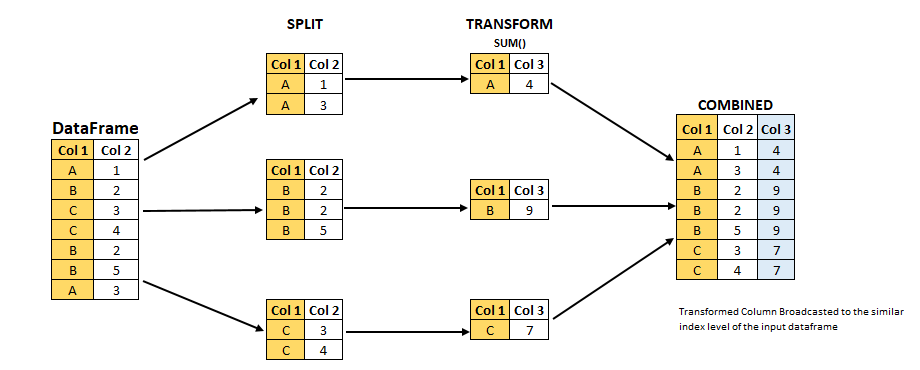
Grouping is not only possible on a single columns, but also on multiple columns. For instance,
we might want to group the capacities by country and fuel type. To achieve this, we pass a list of functions to the groupby functions.
capacities = df.groupby(["Country", "Fueltype"]).Capacity.sum()
capacities
Country Fueltype
Albania Hydro 2079.366
Solar 454.200
Wind 150.000
Austria Battery 40.320
Hard Coal 1471.000
...
United Kingdom Other 35.000
Solar 13679.900
Solid Biomass 4154.200
Waste 1948.150
Wind 39284.500
Name: Capacity, Length: 327, dtype: float64By grouping by multiple attributes, our index becomes a pd.MultiIndex (a hierarchical index with multiple levels.
capacities.index[:5]MultiIndex([('Albania', 'Hydro'),
('Albania', 'Solar'),
('Albania', 'Wind'),
('Austria', 'Battery'),
('Austria', 'Hard Coal')],
names=['Country', 'Fueltype'])type(capacities.index)pandas.core.indexes.multi.MultiIndexdf.nsmallest(10, "Capacity")We can use the .unstack function to reshape the multi-indexed pd.Series into a pd.DataFrame which has the second index level as columns.
capacities.unstack().fillna(0.0).T.round(1)In summary, the typical workflow with pandas consists of reading data from files, inspecting and cleaning the data, performing analysis through transformation and aggregation, visualizing the results, and storing the processed data for later use.
Exercises
Power Plants Data
In this exercise, we will use the powerplants.csv dataset from the powerplantmatching project. This dataset contains information about various power plants, including their names, countries, fuel types, capacities, and more.
URL: https://raw.githubusercontent.com/PyPSA/powerplantmatching/master/powerplants.csv
Task 1: Load the dataset into a pandas DataFrame.
Task 2: Run the function .describe() on the DataFrame.
Task 3: Provide a list of unique fuel types and technologies included in the dataset.
Task 4: Filter the dataset by power plants with the fuel type “Hard Coal”.
Task 5: Identify the 5 largest coal power plants. In which countries are they located? When were they built?
Task 6: Identify the power plant with the longest name.
Task 7: Identify the 10 northernmost powerplants. What type of power plants are they?
Task 8: What is the average start year of each fuel type? Sort the fuel types by their average start year in ascending order and round to the nearest integer.
Wind and Solar Capacity Factors
In this exercise, we will work with a time series dataset containing hourly wind and solar capacity factors for Ireland, taken from model.energy.
Task 1: Use pd.read_csv to load the dataset from the following URL into a pandas DataFrame. Ensure that the time stamps are treated as pd.DatetimeIndex.
Task 2: Calculate the mean capacity factor for wind and solar over the entire time period.
Task 3: Calculate the correlation between wind and solar capacity factors.
Task 4: Plot the wind and solar capacity factors for the month of May.
Task 5: Plot the weekly average capacity factors for wind and solar over the entire time period.
Task 6: Go to model.energy and retrieve the time series for another region of your choice. Recreate the analysis above and compare the results.